Friday, August 29, 2014

Second EASL Room is in Full Swing

Auburn University's second EASL room has been open for business since the beginning of this term.  After two weeks of classes and some minor glitches, faculty and student responses have been very positive.
SCC EASL in action
SCC EASL in action


The room, located in SCC118, holds 72 students at 12 tables with 6 students at each table.  Each table is connected to a Christie Brio Presentation system and a large monitor so that students can not only connect their own devices (laptops, Androids, iOS) to the monitor for sharing but also can use the digital white board that is part of the Brio system.
The instructor can choose to push content to all monitors at the same time or give students control over how they want to use their own monitor, and glassboards surround the spaces for additional writing spaces.
The classes taught in the room this term are Honors Biology, Chemistry, and Physics, Math Education, Physics in Music, Genomics, and a couple of upper level Biology courses.
One of the classes, the learning community of disease hunters, also participates in the ipad pilot, so all students have a university-owned ipad, making it much easier to get everyone comfortable with the technology in the room.


Monday, July 7, 2014

Ipads: Online Resources and Tips for Teaching with Ipads

Here are a couple of other useful references/tips I gathered during our Apple workshops:

Online Resources


You may not know how to get started and may not have the money to get the Apple experts to come to town.  No worries -- if you go into the itunes Store, in the iBooks section, you will find a bunch of useful reference guides created by Apple for free.  Look for the Apple Learning Series with such giudes as Pages fo iOS, Keynote for iOS, iPhoto for iOS.

Especially for Math and the natural sciences, check out the CK-12 iBooks that give a whole range of materials, examples, and ideas for those subject areas.

Tips for Teaching:

How do you get your students (all with their mobile devices) onto the same web page at the beginning of class?  Post on the classroom door a QR code, for example:
 so that students can scan this code on their mobile device with one of the free apps out there to do this.  That way, everyone is indeed on the same page.

Apps to do this would be, for example:
QR Reader for iphone or Scan - QR Code and Barcode Reader.

In order to create these codes yourself, check out a site like http://www.qrstuff.com/.


When you create an iBook, keep in mind that a tool like Google Sketchup allows you to create 3d files and images that can be embedded into your iBook -- together with your videos, text, image galleries, self-quizzes, and graphs.

If you want some more ideas about student learning, check out https://challengebasedlearning.org/pages/welcome for Challenge-based learning -- the key difference between it and problem-based learning is that PBL tends to stop with coming up with a solution, while CBL makes you test whether the solution actually works -- it challenges you.

Australia -- the people on the trip

lunch outside
Heather on the hill
Shannon and Emily petting the 'roo
Brittney Herring holding an owl at the Wildlife Preserve near the Blue Moutnains


Emily Grace

Heather with coala
Jo, Keith, Wiebke, Heather on the way to the Australia-South Africa soccer match
Ben and Ellen at lunch in Tasmania

Sheri Downer
enjoying the view in Tasmania

Heather and Heidi

Lee and Jo

enjoying fish and chips
at the Three Sisters
ready to go

Bonnie Sullivan is an assistant principal for the Elmore County Public School System. She has earned a bachelors in Early Childhood Education, masters in Elementary Education, Instructional  Leadership Certification, and Education Specialist in Elementary Education. She has experience in teaching second and fourth grade. 

Friday, June 27, 2014

Learning more about Creative Commons and itunesU

I have been working with a fun bunch of faculty, support folks and Apple experts these last few days, and learning bits and pieces more about how to use various iOS apps and what to consider when starting a course in itunes U.

So, here some of may take-aways"

Copyright, Fair Use Creative Commons

One of our concerns when putting content online is of course the responsible use of material/content created by other folks.  As our amazing Apple educator pointed out to us, it is easy for us to tell students that they should not use other people's materials for their own work, but even better if we model this behavior for them.

Consider this for a moment - how many of us go online and find the first image that works for us when we put together a presentation for class?  And do we then always have at the bottom of the slide or at the end of the presentation an attribution to the source?  One way of modeling to our students responsible use of other folks' content is to show very explicitly where we get our content from, and, possibly even more important, make sure that this content is marked Creative Commons.

Creative Commons image, Kristina Alexanderson, flickr


One web site that makes it quite easy to find Creative Commons content is CC Search (http://search.creativecommons.org/).  This search engine allows for keyword searches across multiple creative commons areas and for targeting particular kinds of media in this search.  Try it out and see if the search results work for you.

Notice then, that each of the items that come up through this search have a Creative Commons license.  These come in different levels and give you a sense of what kind of use you can get out of the material.  https://creativecommons.org/licenses/ gives you an overview over the options.  These options are available to you as well, so if you believe that your content should be out there for other folks to use in some shape or form, get it out there in this kind of way.

Itunes U

You may have gone into itunes U in the past to marvel at the courses and podcast series that are being produced by other universities around the world.  Itunes U is a great spot to get a free course or free materials about a subject matter that otherwise may not be that easily available to you.  What is the course or subject you are going to pick?

What you may not know is that you can also design your very own itunes U course.  While it may not be as easily distributed if you cannot connect it with a particular institution (and I am sure it is worth checking out if your institution already has an itunes U presence), you can still send folks an enrollment code.  To get started, go to https://www.apple.com/support/itunes-u/course-manager/ as this is the place that gives you an overview what is possible and the starting point to create your own course.  While you can just go ahead and click on Creating a New Course, it may make more sense for you to map out what you want your course to be like.  Best course of action:
1.  Look at the organization of some other itunes U courses.  Note that they all have an Overview, Posts, and Assignments.  Map out what you want to put into these different chunks.
2.  Think of Overview as the Outline, Posts as what you want to say to your students, and Assignments as what you want your students to do.
3.  Remember that you can embed into assignments web links (either off a regular web site or from other parts of itunes, including chapters out of books or segments out of other courses), your own materials, links to apps, links to video and audio files.
4.  You have to have a square image of yourself that is at least 300x300 pixels and a square image for your course that is at least 600x600 pixels -- so make both of these images a little larger than needed to be on the safe side.
5. You can add up to 4 other designers to your course so that you do not have to do this all alone.

Friday, June 20, 2014

Learning stuff about my ipad

I am sure there are plenty of web sites out there explaining all the great features you find on your ipad, so I am not going to cover everything in great detail, but just a few things I learned about today that I had not discovered on my own.

You may have been wondering how folks can send emoticons and other icons from their iOS devices.  Turns out this is one of the keyboards you can select.  You find the keyboard called Emoji under Settings, General, Keyboard, Keyboards.  Select any and all languages you think you may use at some point, including Emoji.  Now, when you are in an app, like Notes or email, and you want to change the keyboard to, say, German for an Umlaut, or Emoji for an icon, click the globe key on your keyboard (you will only have this as an option if you have more than one keyboard selected) to toggle to the next keyboard layout.  And then emote away.

You may have also been wondering about how you can have your iOS device read to you.  Under Settings, General, Accessibility, you have Voiceover that allows you to have the device read to you.  You also have Speak Selection in this area that, when enabled, will highlight a word when it is spoken.  This may be useful for folks with reading difficulties

For the ones among us who need to be able to increase the size of items, you have two choices.  If you simply want to adjust the default size of text displayed, you will find an option for adjusting Text Size under Settings, General, Accessibility, called Larger Text.  Under Accessibility, you also have the ZOOM functionality, though it may take some getting used to this one.

If you want to delete something you have written, a vigorous shake will Undo.

If you want to be able to dictate notes, make sure you have Siri turned on.  Siri can also be customized under Settings, General -- you can change accent, Gender and a couple of other things about Siri.

If you have too many apps on your iOS device, remember that a swipe from the top brings up the Search bar - -and this is a search that also looks at content, not just at the name of the app.  Also, if you have too many apps, you can pull them into categories - -and you can have multiple screens within one category.

You may have heard that you need to close your apps in order for the ipad not to lose its battery life so quickly.  This is a myth. Apps do not use any power unless they are on the screen.  The only exceptions are the Music app and some mapping apps.  However, if one of your apps does not behave the way you want it, closing it out completely will force the app to restart.  To do this, double-click on the home button (the button that allows you to shift between apps), and when you see the apps that are open on your screen, drag the misbehaving one to the top to see it disappear out of the list.

Wednesday, June 18, 2014

Australia: Last and Longest Day...

and lessons learned from traveling

The final day was a very long day of traveling.  Forget June 21 as the longest day of the year; this year, it was for our group June 15.  We started out at 8am, June 15, left towards California, landed after 13 hours flight at 8am, June 15, and just kept going until we were home at 10pm, June 15, in Atlanta.  That turned our usual 24 hour day into pretty much a 39 hour day!

waiting for the last flight

waiting for the last flight


Here some lessons learned from traveling -- if you know that the location you are going to has a washer and dryer, pack less.  And I mean considerably less, so that you will not need to buy a third suitcase at the end of the trip because you already started with very full suitcases from the start.

If you really need a hair dryer and other electric devices, remember that not only the plugs but also the voltage are different -- I think our group killed at least 4 hair dryers. It is highly likely that your hotel will have one in the room, or that you can borrow one.

If you are on a budget, take the budgeting sheet from Study Abroad seriously -- most developed countries are considerably more expensive than the US, so you will spend more money, whether you like it or not.

Pack and wear comfortable shoes -- flip flops will not work after mile 3 of walking.

Be adventurous -- try new foods, talk to people around you, go to a museum or a sports event, even if this is not your usual thing.

Monday, June 16, 2014

Australia and its food

Yes, we had way too many meals at various restaurants and other places, but that also meant lots of opportunities to try out new food.

Here are some of the customs we learned about:

vegemite -- http://en.wikipedia.org/wiki/Vegemite -- not to everyone's taste!


fish -- the sea food is great, and if nothing else, you need to try the fish and chips
fish and chips


morning tea-- in case you need an excuse to take a mid morning break, this is the perfect way to do it.

flat white, long black -- that is what you order in Australia, when you want to drink coffee -- either with lots of milk or black

roo -- or kangaroo -- you can find it, primarily as burgers.

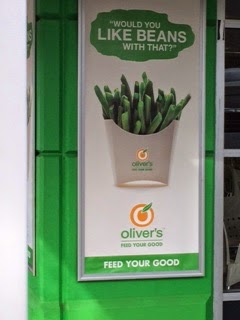
While you will find fast food places of certain US flavors, a lot of the corner stores, small stores, small bakeries and such offer much healthier alternatives -- even the truck stops on their Interstate:
truck stop food ad


Here some of the places that had some interesting meals.

Rustic Pearl  http://www.urbanspoon.com/r/70/1727016/restaurant/Sydney/Rustic-Pearl-Surry-Hills

Watsons Park http://www.doyles.com.au/    for the Fish and Chippery

White Horse  http://whitehorsesurryhills.com/

The Clock Hotel http://clockhotel.com.au/

The Dolphin Hotel  http://lanternhotels.com.au/dolphin-hotel 

Messina:  http://www.gelatomessina.com/  best frozen dessert in town - I need to get the book
Gelato selection


Vacanza in the Hills  http://www.vacanza.com.au/

Xage Vietnamese  http://www.xage.com.au/
dinner at Xage

Xage


Zaida Lebanese  http://zaidacafe.com.au/

Mures Upper Deck http://mures.com.au/upper-deck/  in Hobart, Tasmania

Ball and Chain http://ballandchain.com.au/

Jackman & McCross https://www.facebook.com/pages/Jackman-and-McRoss/139201119459938  

raisin bread loaf