Tuesday, October 18, 2016

Auburn University's Learning Glass


Using the Learning Glass
You may have admired folks who can work magic with green screens -- pointing at hurricanes or making weather fronts move.
And you may have admired touch screens that allow for on the fly content creation and modification.

Both of these technologies are somewhat pulled together in the Learning Glass.

Imagine you want to capture a process in a video -- drawing it on a white board is awkward because your back is to your audience.  The learning glass allows you to talk to your audience while drawing the process.

Auburn University now has this capability, organized through Auburn Online, starting out in the Biggio Center.  For starters, you can check out http://wp.auburn.edu/auburnonline/media-services/ with additional information at
01-    Introduction –https://goo.gl/YbOMkc

02-    Overlay Examples / Image Standards –  https://goo.gl/lht7sA

03-    Examples of Best Practices - https://goo.gl/uOnvi5
I
I I tried it during their open house recently and came up with this video to show you how the learning board works


What do you think you can do with this technology for your class?  Be mindful that the work flow is a complex one that can take quite a bit of time for larger undertakings.  Alternatives that are most certainly less fancy would be using a tablet device with a whiteboard app that allows for recording.  You would lose the coolness factor but may still be able to get the same point across.


Monday, October 17, 2016

Impressions from ALATEC 2016

ALATEC
This year's ALATEC (Alabama Assistive Technology Expo & Conference) happened last week at Auburn University.  I had the opportunity to attend a couple of the sessions and learned some useful insights and tips for working with students who may need special accommodations -- insights and tips that will help a lot of other students as well.

I had the chance to listen to Luis Perez show off features in iOS 10 that may make lives easier for a range of users.  Luis Perez focuses in his research on inclusion and universal design, and his web site contains a number of interesting tools and strategies.

Here some of the takeaways from his session that focused on iOS devices:
If you have visibility issues that can be corrected through changes in color schemes, go to
Settings > General > Accessibility > Display Accommodations.  Here you can


  • invert colors (note that this also inverts colors of images)
  • turn on Color Filters to see your device in Gray scale or in a different tint that may help you with different types of color blindness -- Protanopia, Dueternaopia or Trianopia -- or you can set a Color Tint to create less of an emotional turmoil if certain colors increase your stress level.

Under Accessibility, you will also find your Magnifier that allows you to turn your camera into a magnifying glass -- if you ever needed to read serial numbers, you will love this feature.

Under Speech, you can turn on Speak Selection -- this allows you to have written text that you select read to you - -and this can happen in any language.
You will also see your options of Voices here, the speed you want text read to you (turtle or hare) - imagine using this feature for students who are learning a new language.

Typing Feedback allows you to hear the last letter or word you typed -- very useful for dyslexia

And, finally, this is for all of you out there who cannot call me through Siri:  you can train your phone for a particular pronunciation, Speech > Pronunciation where you type in the word, type in an approximation of the phonetic word and then save this for future references.

Of course you can also turn your iOS device into a full braille-capable device and have apps that recognize currency so that you don't have to figure out what a bill is, not to mention the app Tap tap See that takes a picture of an object and then tells you what the object is.


The other session I was at discussed working with students who are diagnosed with ADD/ADHD.  Jessi Wright from UAB gave a passionate presentation on different ways we need to rethink what we do with students -- but most importantly, that we need to help students be stronger advocates for themselves.
As I am sure you know, ADD and ADHD are the number one reason students need accommodation in college, with constantly increasing numbers.  If we get such memos, we know what we have to do to help, but here are some other ideas and these ideas may help all students.
1.  During exams have timers available
2.  During exams and individual activities allow students to wear noise cancelling headsets that may play music of white noise
3.  Have fidget tools at hand
4.  Allow for movement breaks
5.  Provide all students with resources on note taking, focused learning, recognizing when their best time for learning is
6.  use mid mapping or brain storming tools for students to collect an outcome of their thinking

Students can use tools to cut down on distraction -- for example the Readibility extension for Chrome that cuts out all the advertisement and just shows text.  Students need to choose to sit close to the action

Finally -- teaching your courses in EASL spaces makes it easier for students with ADD/ADHD to focus, so they will be more successful as students.


Monday, October 3, 2016

Data & Analytics Summit, elearning guild, September 2016

word cloud learning analytics
word cloud:  learning analytics
Last week, I participated in the elearning guild's Data & Analytics Summit, a two-day series of sessions focusing on different kinds of data, collection of data, analysis of data, and what the future may hold in store.

Here some takeaways from the sessions:


Analytics means:   simultaneous use of statistics, software, operations research to quantify performance, meaningful pattern recognition, use of data visualization

How are we using the data: for description (what is happening?) or for diagnosis (why did x happen?) or for prediction (what is going to happen?) or for prescription (how can we make x happen?)

How do we get trusted data?  Not only do we pull in data from multiple sources, but we need to establish relationships with stake holders, so that we can trust the data they provide -- and we need to add to this data governance and quality assurance, a common language, visible data integrity and formal accountability.

A lot of the discussion was not focused on higher education but education in the workforce, which raises a very different set of questions -- still, these questions apply to our university community just as much as we have about 6,000 employees at the university, excluding student workers and graduate assistants.  This substantial number of people deserve serious though on how professional development can help them improve their lives and their jobs -- what areas might benefit from repeating micro-lessons to improve performance?

How is our workforce shifting and what does this mean for higher education:  We know we are moving more and more into a service-based society, and we have see that artificial intelligence (AI) can outperform humans already in a number of jobs.
The key is to self-regulated, self-directed, self-selected learning.  I was learning the other day about Chicago and how its museums, art galleries, and other public educational institutions focus on informal learning with elements of gamification.

Looking for a job?  Think Learning Analytics -- this is a growing field tha tneeds careful thinkers to make sense of the gobs and gobs of data.
Worried about your data?  You should be -- we need policies and governance to assure that all that data that is collected right now and that soon will include data collected through the Internet of Things is managed responsibly.
Finally:  Wanting to try something new? https://h5p.org/ for interaction. This web site makes it easy to develop interactive exercises that can be embedded into any web page, including your LMS.

Ok, I will stop rambling now...

Friday, September 23, 2016

Accessibility and Universal Design

universal design
Universal Deisgn
Universal design is design that allows the largest number of , if not all, people access to a place, a web site, information, you name it.  Think of how many times you have used a curb or the button to open the automatic door to get to a particular space -- this may not have been the intention when the curb or the door were installed, but giving more people access benefits all people.
The same principle applies to online materials.  If you are designing content for public web sites, and you are working at a university, you have to design your web pages with universal design in mind.  If you want to reuse web-based instructional materials for a few years, you should consider the same design.
Luckily for us at Auburn University, we have an awesome Office of Accessibility, with an Assistant Director who is willing to talk with folks about how to get started on universal design.  Dr. Scott Renner ran a couple of workshops this week, giving us lots of reasons why we need to do this (just in case federal law was not compelling enough), but also some easy tips and tricks on how to get started.
Why should we do this:  Because it is the right thing to do.
How many times have you turned on sub titles in a movie because you had trouble hearing what is going on, or your high school Spanish was just too rusty?  We all benefit from close captioning.
How many times have you enlarged the font on a word document or web site to make it easier to read for folks sitting in the back of the room?  We all benefit from adding headers to our Word documents and PDF files.
How many times have you moused over an image to find out what it is about, where the image was taken?  We all benefit from alt tags.
Be Proactive!

So, how do we do some of these things?
1.  Scan to OCR, not to an image file.
2.  In Word, use Headers for your headlines
header toolbar in word
Header Toolbar


3.  Add alternative text for images for description:  right click on image and find, under Properties, the alt tag.  Capture the essence or main point of the image that you want to get across.  The same image may require a different description, based on the context it is placed in.
4.  Use the Accessibility Checker in MSWord and MSPowerPoint for Windows - under File - Check for Issues, Check Accessibility
5.  For Powerpoint and Keynote:  keep it simple, do not add text boxes
6.  For Audio files:  provide a text-based transcript
7.  For Video files:  provide close captioning and/or text-based transcript
8.  Provide meaningful hyperlink description, so not Click here but turn the link itself into a description.

The Office of Accessibility can help you with more complex issues (for example, if you don't want to tackle close captioning right now, they can help).

My challenge to you -- start using at least one of these techniques today when you work on documents, materials that you know are bound to be distributed in some shape or form.  You never know who is going to read or watch or listen to your content.

Thursday, August 25, 2016

EASL2Go: New Rooms Online


l 

This summer, Auburn University worked on getting nine new active learning spaces online, funded through a Provostial grant, with some of the departments participating able to add funds to make the room design even more dramatic.
Funding from the Provost's office focused on mobile, that is relatively easily movable, technology and furnishings up to about $20,000 per room.  Proposals had been evaluated in February to ensure a summer timeline, and once all these rooms were taken off line so that no classes could be taught in them during the summer, departments got busy ordering furnishing by certain deadlines and working with Auburn's Classroom Design group to get the technology installed before August 1.  The week before classes started, we organized workshops for faculty scheduled to teach in these redesigned spaces for Fall to give them at least some warning, needed training on the new technology and tips on shifting classroom activities to increased collaboration.

The rooms now contain glass or white boards on multiple walls, with mobile boards in some spaces; sharing technology for students to project their mobile devices to locations in each classroom, and some rooms were able to get a furniture upgrade as well to make the furniture collaborative.  In one space, floor color was used to highlight collaborative organization, and one space also added 3D printing for creation of models that then could be displayed for everyone to see.

Spaces include:
Chemistry 156
Chemistry 156
Haley Center 3104
Haley Center 3104


Haley Center 3242
Haley Center 3242


Rouse 112
Rouse 112

Spidle 102
Spidle 102

Thach 228
Thach 228


Wiggins 3468
Wiggins3468
Wiggins 3468 3D printers

Friday, June 10, 2016

InfoComm in Las Vegas, Day 3

The days are bleeding into each other, with a somewhat late night from Day 2 carrying over into Day 3, with musical fountains and musical paint buckets (awesome street performer using the most basic pots, pans and buckets for percussion).

Inside Caesar's Palace
My second (and final) day in the Exhibit Hall brought the challenge of getting to at least see the remaining booths -- and with a total of 1000 exhibitors, that was a formidable task.  I think I may have almost accomplished this, but of course it means that I literally just saw the booth and decided to keep walking for a large number of these.  The two buzz words in the booths I saw were definitely collaboration and huddle (as a prefix). 

Curved moving display


 This day brought a larger number of options for video conferencing, some interesting interactive boards/tables, a few more collaborative options, and of course the random cool stuff.  Lots of displays of multiple displays merged together to create large, interactive walls or differently shaped surfaces for display (curves, crystals).  Some of these displays (multiple monitors managed) raise the question if we need something like this in our School of Communication and Journalism

Video conferencing:
Ubiety, bought by Cisco, claims to have a different licensing model
Starleaf:  video conference in the cloud
Videxio:  also in the cloud
beam max is the video conference system on wheels -- as in, I am at a remote location, and you can talk to me through a quasi robot on wheels that can move through a space and thus have more personal contact than the usual static video conferencing position
Infocus Monopad can connect to up to 46 screens

Collaboration:
HP collaboration with intel unite -- allows for easy file sharing
Displaynote Technologies Montage:  remote users can connect into the collaboration
QVS collaboration allows for up to 64 users to connect to one display who have their content to be shared queued up for up to 4 displayed on one monitor
Mersive has a system called Solstice that is designed around its own app for Windows, Mac, iOS, with unlimited connections and a neat way to shift content about
AMX Enzo:   the latest version now has a Firefox browser, so we definitely want to get ours upgraded to that to see how it fares with virtual machines.  The web site is kind of cool with its Campus Explorer module.

Interactive boards/tables:
Display 10:  has an endless interactive board
Scalable Display has a Huddle Wall that is magnetic, looks like a very thin white board with magnetic backing
QuirkLogic :  they market themselves as digital paper
Salamander Design had some nice models of foldable tv
Odin Tech has a very interesting display that can be turned black and then also written with chalk on -- and I saw a cool eraser with built in water supply -- be aware that the site is in Chinese and I cannot make heads or tail out of it.
Cybertouch was touting Touch Overlays -- if I understand this correctly, this could turn any display into a touch screen

Miscellanous:
I saw a couple of room scheduling solutions, focusing on small displays next to rooms that allow for on the fly scheduling (Eventboard, Condeco claims to sense occupancy
Phoenix has a Condor microphone array that they had set up under their display and could capture sound to at least 26 feet.
Connectrack prototype
Connecttrack has very low wire covers and are about to come out with a cover that can go under the carpet, similar to Thread -- key difference is that this solution can also bundle network cables, and it appears to have a very neat way to bring the power into the room.  I just cannot find them online...
ISmart lecture capture follows the lecturer.
Audience Response System has clickers that look rather outdated but they can cover up to 2000 responders at the same time
The couple of companies I saw for acoustic panels had very creative looking solutions
Waveion
Waveion
Waveion -- I don't know what it does, but it looks cool!
Las Vegas Sunset
Las Vegas Sunset


Thursday, June 9, 2016

InfoComm in Las Vegas, Day 2

InfoComm 2016
InfoComm 2016
InfoComm is just enormous -- 1000 exhibitors, over 40,000 attendees, way too many square feet, and the conference even has food trucks and its on tv channel -- just mind boggling.
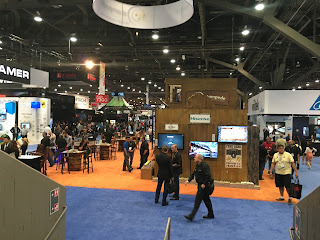
View of Exhibit Hall

I spent almost 6 hours working my way through the exhibit hall - and I am not done yet...
Here are some products that peeked my interest.


Classroom Design:
As you know part of my mission I chose to accept is to find collaborative technologies that will work for the EASL classrooms.  This conference has quite a few, and they are all starting to look rather similar.
Blackbox's Coalesce system    This system looks like it would work best in a conference room setting.
Wolfvision Cynap  promising system that even allows annotation across multiple displayed devices
Qomo's Ormi and Ormiboard:  brand new company that allows for the building of interactive exercises, games, etc - and the students can build, too. I am thinking some of the natural sciences where you need to build molecules, DNA, and other graphically based artifacts.  The software they showed is released June 26, so nothing is quite online about it yet.  They also have a document camera that can be mounted to the wall and stored in a little cabinet when not in use -- an interesting concept I had not seen before.
Epson interactive portable whiteboard table -- can be adjusted from whiteboard to table to easle, making it an interesting option for any class dealing with design.  The table is on wheels but not quite what I would call portable.
Crestron
Phillips D-live
VIA (Kramer): promising system, they think linux collaboration may be possible (for our splinter group on campus), system integrates with Skype for Business, and shared content can be annotated and saved locally.  Document camera feed can be annotated as well.
cyviz:  This Norwegian company focuses on collaboration - what I found interesting was their remote management of and training on their control touch panels
Barco:  Yes, they still have the hockey pucks (Clickshare) but are moving into the same direction of no longer needing that kind of device and using Airplay etc to connect.  Their set-up was nice, with the teacher being able to have up to 8 displays on the main screen, to control which student feed needs to be shared to all, to lock the screens for greater focus

I also found some interesting video conference solution that may work for synchronous distance education:
1 beyond - has a portable system, a concept that appears to pick up momentum
onescreen:  is software based, with the beginning license covering 25 seats that may accomodate quite a few classes.
vyopta for video conference management was in the innovation corner -- they manage video conference traffic across multiple platforms to trouble shoot, analyze data, and claim that their product can cut down on cost.

Finally, some miscellaneous finds:
Flexglass - so flexible you can roll it up and store
IDEA Screen from Chief: I am wondering if they are connected to IDEA paint - the logo looked the same
Brown Innovations has physical cone of silence solutions
Samsung's large displays synced to mobile devices
Mybeam explained to me how their system together with sound masking could create a cone of silence.
Drywall Trapper:  for when you have to cut holes in to the ceiling
Nureva Span sticky note wall uses multiple projectors to create one long interactive wall -- looks quite interesting.


My findings are of course barely scratching the surface - one space is covered in stage light, stage audio system exhibits, with fog machines and light shows (and live music).  One place has an artist's installation:  Refik Anadol's Infinity Room

Infinity Room
Infinity Room

Animation display
Animation display
Another area has lots of switches, wires, tools, different systems to mount displays, and another area has a lot of projection system, with the big screens at front and center.


curved display
curved display

Finally, the hall also has an innovation corner with brand new products that you can vote on as the most likely success.

Speaking of large displays -- we zip lined under the largest display last night at the Fremont Street Experience -- quite the cultural experience, rounded out by a visit to the El Cortez casino which is one of the older ones in town.  Just like in the movies...
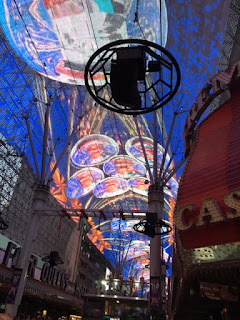
largest video display
largest video display at Fremont
zipline
zipline
downtown Vegas
downtown Vegas


downtown Vegas
downtown Vegas

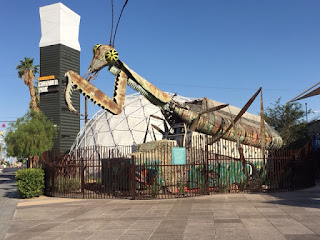
Praying Mantis at Container Park

Container Park
Container Park

bizarre place to eat